A layered piece looks flat on screen and very different on the wall. A 3D preview closes that gap: you see the stack before you cut it, and the customer sees the finished product before they pay for it. This guide covers which kinds of tools give you a 3D preview, what a useful preview must show, and how we use it in our own workshop.
Quick answer
- Laser software (LightBurn, xTool Creative Space) previews the toolpath in 2D: order, time and overlaps, not the stacked result.
- General 3D programs (Blender, CAD) can stack extruded SVGs, but you rebuild the model by hand for every design.
- Product designers with built-in 3D, such as the Maperivo Laser Map Designer, build the stack from the same geometry as the cut files.
- A useful preview shows every layer, pieces per layer, total height, the material, and can be saved as an image for the customer.
Three kinds of "preview", compared
| Tool type | What you see | Good for | Limits |
|---|---|---|---|
| Laser software preview | Toolpath in 2D, job order, time estimate | Checking the cut order and run time | No stacked 3D result |
| General 3D / CAD program | Any 3D model you build | One-off designs, renders | Manual: import, extrude and stack every sheet each time |
| Designer with built-in 3D | The real layers from the export geometry | Products you sell repeatedly, customer approval | Only the products the designer supports |
Categories, not a ranking. Many workshops use more than one.
What a good 3D preview must show
- Every physical layer, from the same geometry as the cut files. A preview drawn separately can hide the very mistakes you want to find.
- An exploded view, so you see each sheet on its own and what sits on what.
- Pieces per layer: a layer with hundreds of loose pieces will be slow to glue.
- Total height from your sheet thickness, so you can pick the frame depth.
- Material and colour, close enough that the customer recognises the product.
- An image export for approval.
How it looks in Maperivo
Switch the designer from Product preview to 3D. The layer panel lists each sheet with its piece count, the total sheet count and height, and the sheet thickness you cut (4 mm in these screenshots). Stack layers and the two sliders pull the layers apart vertically and sideways; Solo view shows the base, land or streets alone.
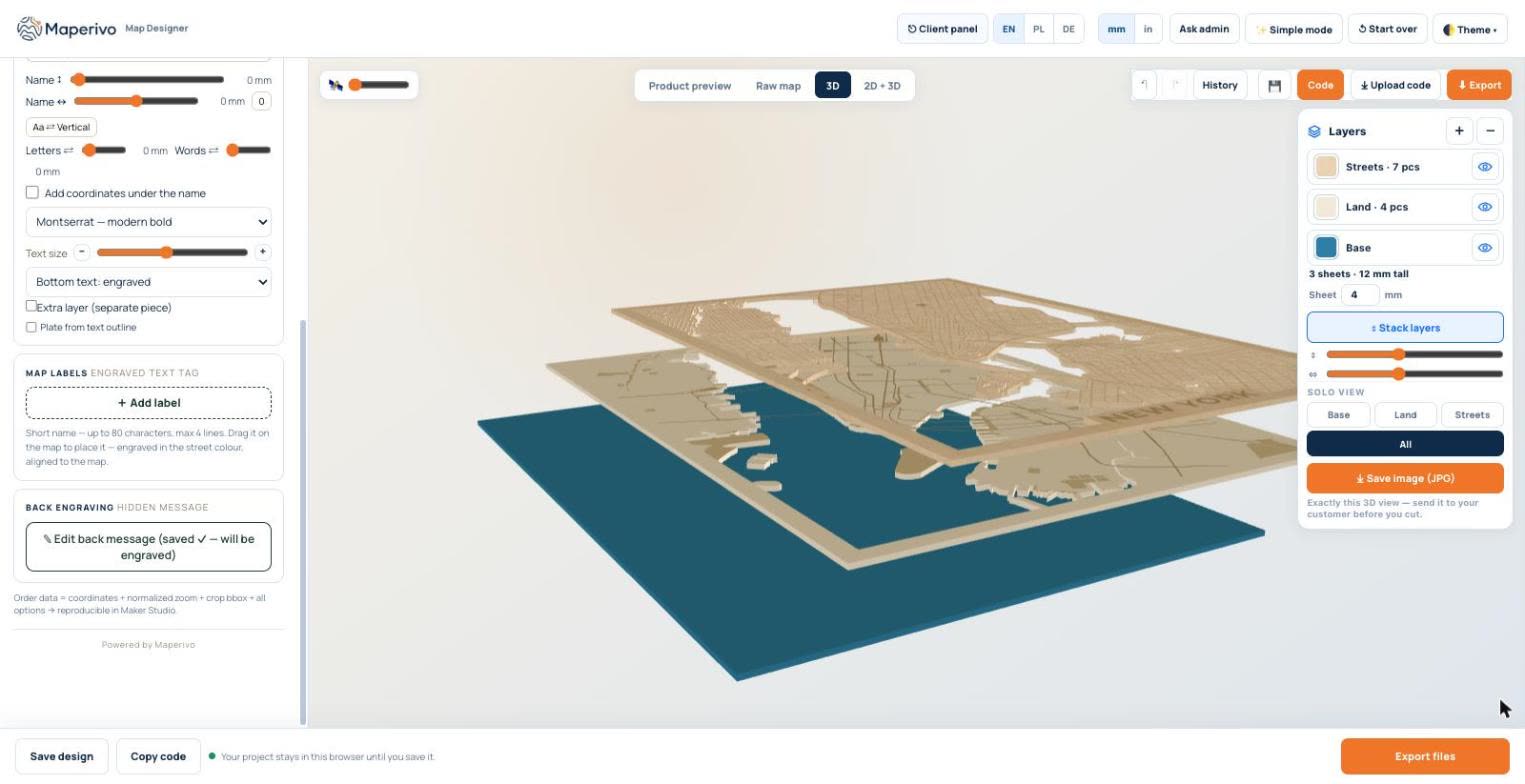
The same view works for every layered style. On a lake depth map each depth step is a separate sheet, so the preview also tells you how thick the piece will be before you order material: the Lake Minnetonka map below is 9 sheets and 36 mm tall.
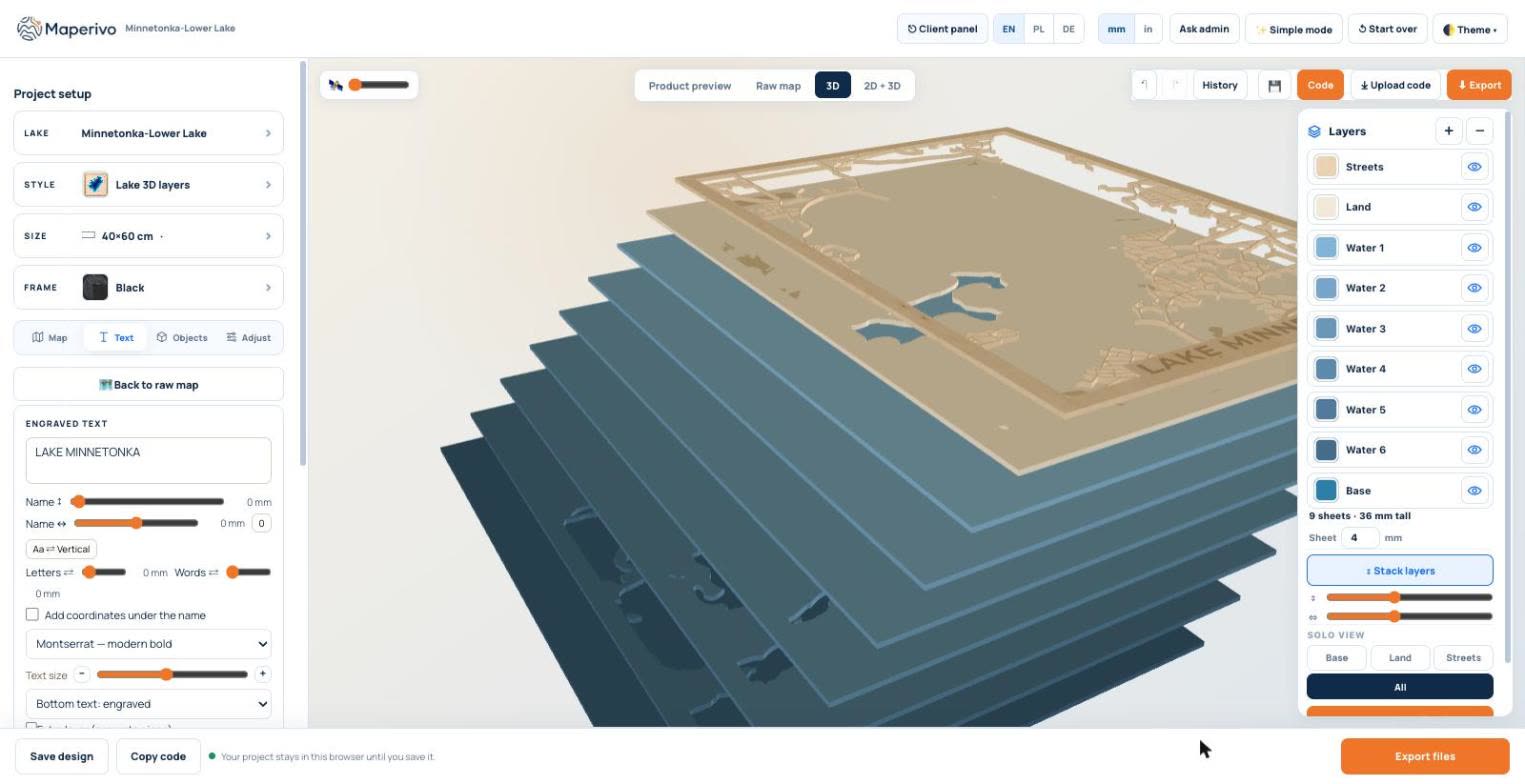
2D + 3D shows the flat map and the 3D stack side by side, which helps when you adjust street widths and want to see the effect on the layers.
Use it for customer approval
Press Save image (JPG) and send exactly the view you see. Customers judge a 3D picture much better than a flat line drawing, and a clear "yes" on it prevents most remakes. More on the whole order flow in how to manage custom map orders.
What a 3D preview will not tell you
A preview does not know your kerf, your air assist or how flat your plywood is. Cut a small test from the same sheet, check that thin parts survive, and see glue, alignment, kerf and warping for assembly. For file preparation see best practices for layered SVG files.
You can try the 3D preview on any city or lake in the Laser Map Designer; it is included in the free trial.