A custom map is a small order with a lot of questions: which place, how big, which streets, what text, which font, the heart a bit to the left. If every answer arrives as a chat message, a busy week means hours of copying details by hand and the risk of cutting the wrong version. This is the workflow we use to keep custom map requests short and mistakes rare.
Quick answer
- Let the customer design it: send one design link instead of asking questions.
- Offer fixed options: a few styles, sizes and prices, not "anything is possible".
- Collect everything in one place: an orders list, not your inbox.
- Approve with one picture: a 3D preview image before cutting.
- Mark status and cut in batches by material.
1. Replace the questions with a design link
The slowest part of a custom order is getting the details. Instead of asking for the address, the size and the text one message at a time, send the customer a link where they design the map themselves. They see the result while they work, so "can you make it a bit bigger" happens before the order, not after.
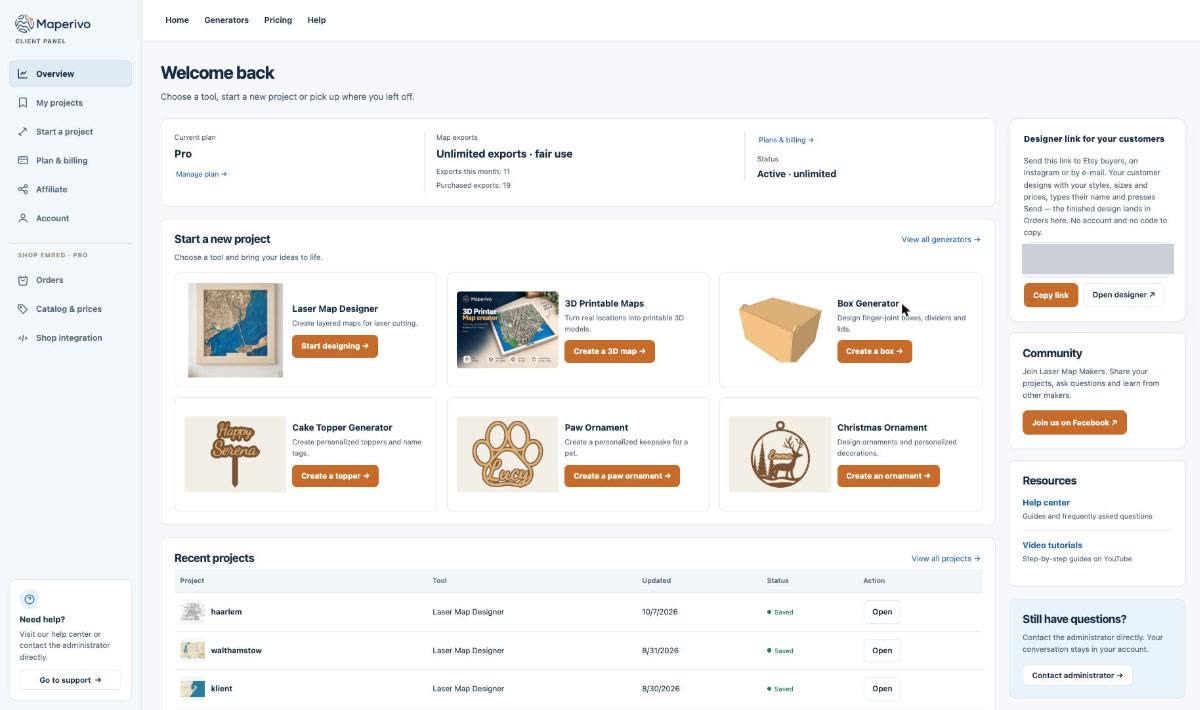
In Maperivo the Designer link for your customers is on the first screen of the client panel. You paste the same link into an Etsy message, an Instagram reply or an e-mail. The customer needs no account and no code.
2. Offer fixed options
Choice is good; unlimited choice is a support queue. Decide which styles, sizes and frames you actually make, and price them in advance. In the client panel, Catalog & prices sets what your customers see in the link: your styles, your sizes, your prices. For pricing help see how to price custom map products.
3. One button to send the design
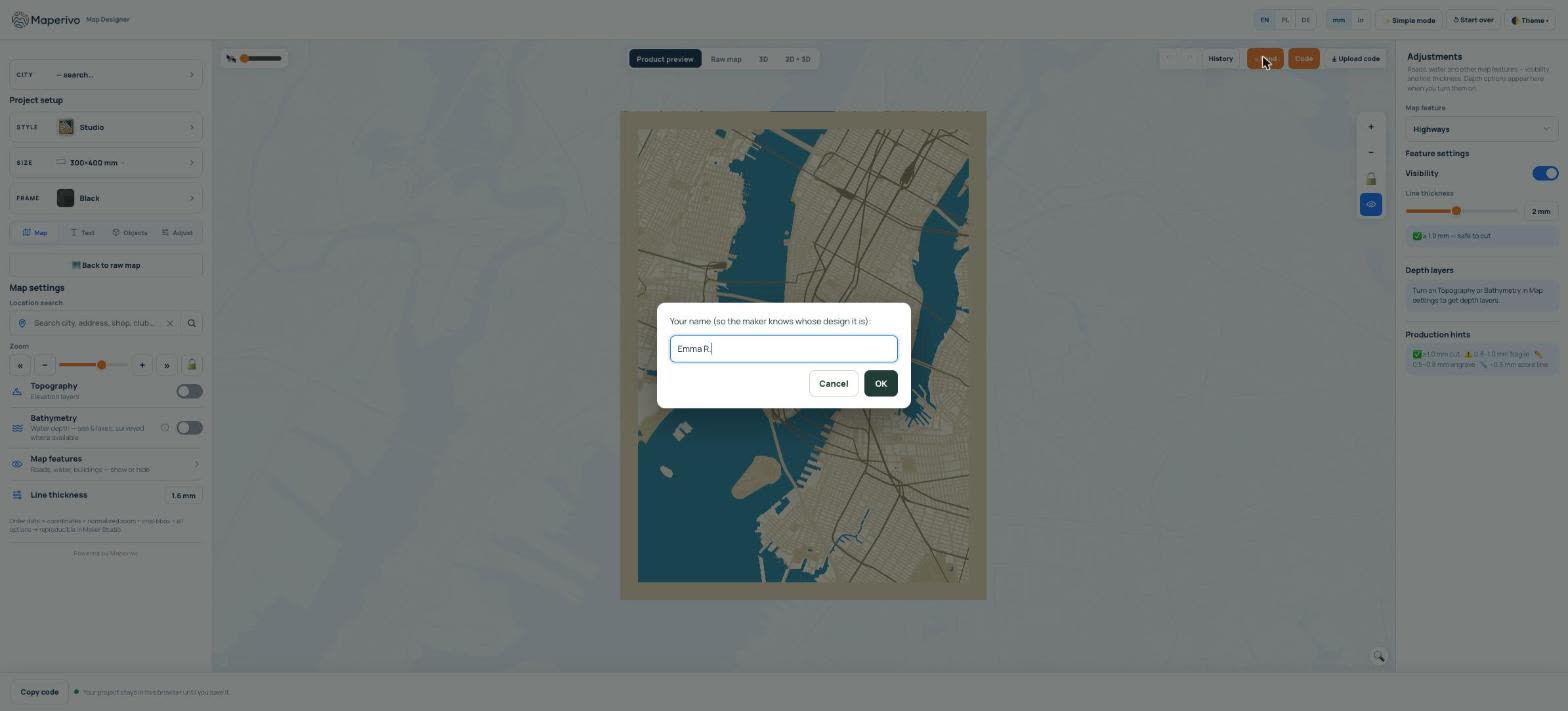
When the customer is happy, they press Send and type their name, so you know whose design it is. Nothing to copy, no screenshots of screenshots.
4. Collect everything in an orders list
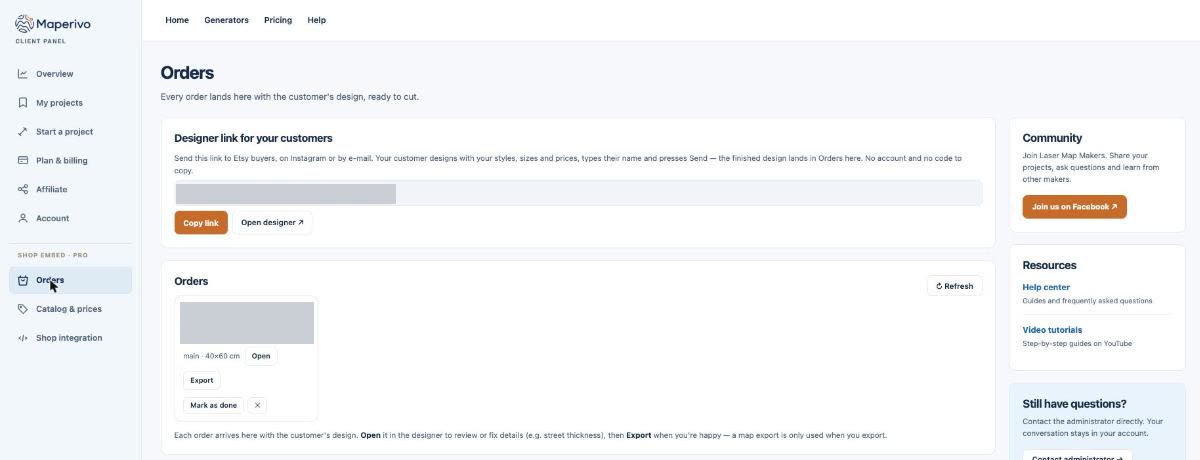
Every sent design lands in Orders with its style and size. Open loads it in the designer if you want to check or fix something (street thickness, text spacing), Export creates the production files, and Mark as done keeps the list short. A map export is only used when you export, so a customer who designs three versions does not cost you three.
5. Approve with one 3D picture
Before cutting, send the customer one image of the finished piece. In the 3D preview, press Save image (JPG): it saves exactly the view you see, layers and colours included. A clear "yes" on a picture prevents most remakes. See 3D previews for laser-cut designs.
6. Cut in batches
Group the approved orders by material and thickness: all 4 mm plywood bases together, all street layers together. Fewer material changes, fewer test cuts, and the laser runs while you glue yesterday's maps.
Message templates that save time
| Moment | What to send |
|---|---|
| First contact | Thanks! Design your map here (takes a few minutes): [link]. Press Send when you are happy and I will get back to you within one working day. |
| Approval | Here is your map in 3D, exactly as it will be cut. Reply OK and it goes to the laser today. |
| Change request | No problem: open the same link, change it and press Send again. I will cut the latest version. |
| Shipped | Your map is on its way. There is a message engraved on the back; do not open it before the big day! |
Our wording; adapt to your shop and language.
What about a full shop?
If most of your orders come through your own store, put the designer on the product page itself. Customers then design while they buy, and the production file arrives with the order. See how to add a map designer to your Shopify store and how to sell laser-cut maps online. Customer design links and the store embed are part of the Business / Embed plan, with 0% commission on your sales; see pricing.