"Layered" means two different things in laser work: layers in the software (cut, engrave, score on one sheet) and physical layers (several sheets stacked into a 3D piece). A good layered SVG handles both. These are the rules we use for every multi-layer map we cut, and the ones our exporter follows.
Quick answer
- One SVG per physical sheet, all on the same canvas size so they line up.
- Real millimetres in the file, never pixels.
- One colour per operation (cut, engrave, score) and the same palette in every file.
- Order the work inside a sheet: engrave and score first, cut last.
- Add a shared frame or registration edge to every sheet for gluing.
- Check minimum widths and tiny pieces per sheet.
- Name files by sheet and order (base, land, streets).
- Check the stack in 3D before cutting.
- Keep the design code so you can re-export the same piece later.
1. One file per physical sheet, one canvas for all
Each sheet of plywood or acrylic gets its own SVG, and every SVG uses the same canvas, for example 400 × 600 mm. Then the outer frame sits in the same place on every file and the layers align when you stack them. Putting all sheets side by side in one big file looks tidy, but it breaks the alignment as soon as you move one part.
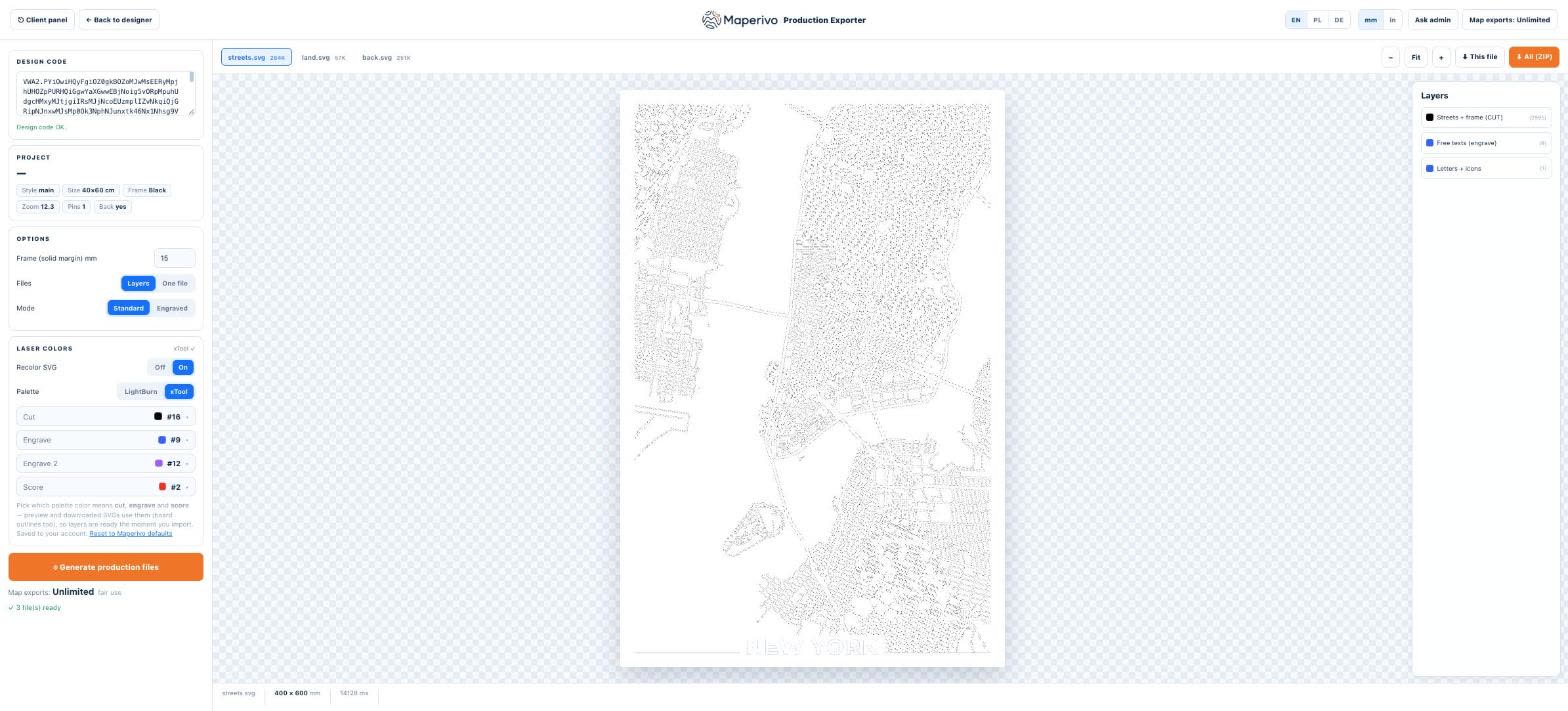
In the Maperivo exporter you choose Layers (one file per sheet: streets.svg, land.svg, back.svg) or One file for single-sheet products. The file tabs show each sheet on the same 400 × 600 mm canvas.
2. Millimetres in the header
Write the size in real units (width="400mm" with a matching viewBox). Pixel-based SVGs import at different sizes in different programs; with several sheets that error repeats on every layer. More in common SVG mistakes for laser cutting.
3. Colours mean operations, and the palette never changes
LightBurn and xTool Creative Space map colours to layers on import. Fix one palette and use it in every file: one colour for cut, one for engrave, a second engrave colour if you want two depths, and one for score lines. Your saved material settings then apply without touching anything.
| Operation | Used for | Example colour (xTool palette in Maperivo) |
|---|---|---|
| Cut | Outlines, streets, water openings, frame | #16 (black) |
| Engrave | Text, filled thin roads, parks | #9 (blue) |
| Engrave 2 | A second depth or tone | #12 (purple) |
| Score | Single lines under 0.5 mm | #2 (red) |
The palette is editable in the exporter; pick LightBurn or xTool and the colours follow.
4. Order inside a sheet: engrave first, cut last
Once a part is cut free it can shift by a fraction of a millimetre, and an engrave after that lands in the wrong place. Run engrave and score layers first, inner cuts next, and the outer outline last. Most laser software lets you set the layer order once and keep it.
5. A shared frame or registration edge
Stacked layers need something to align against. A solid frame of the same width on every sheet (the exporter has a "Frame (solid margin)" setting in millimetres, 15 mm in the screenshot) gives you a straight edge for gluing in a corner jig. Without it, you are aligning by eye on loose map pieces. For gluing and alignment tips see glue, alignment, kerf and warping.
6. Minimum widths and tiny pieces, per sheet
Each sheet has its own weak spots. On the street layer they are thin roads (keep cut lines at about 1 mm or more); on the land layer, small islands and narrow land between rivers. Count the loose pieces per layer: a layer with hundreds of tiny parts is slow to glue and easy to lose.
7. Name files by sheet and order
Use names that say what the sheet is and where it goes: 01-base, 02-land, 03-streets, back. When you cut ten orders a week, a file called "map-final-2.svg" costs time.
8. Check the stack in 3D before cutting
A 2D drawing hides most layering problems: a piece that floats with nothing under it, water that does not show through, a layer that is too dense to glue. A 3D preview built from the same files shows them before you burn material.
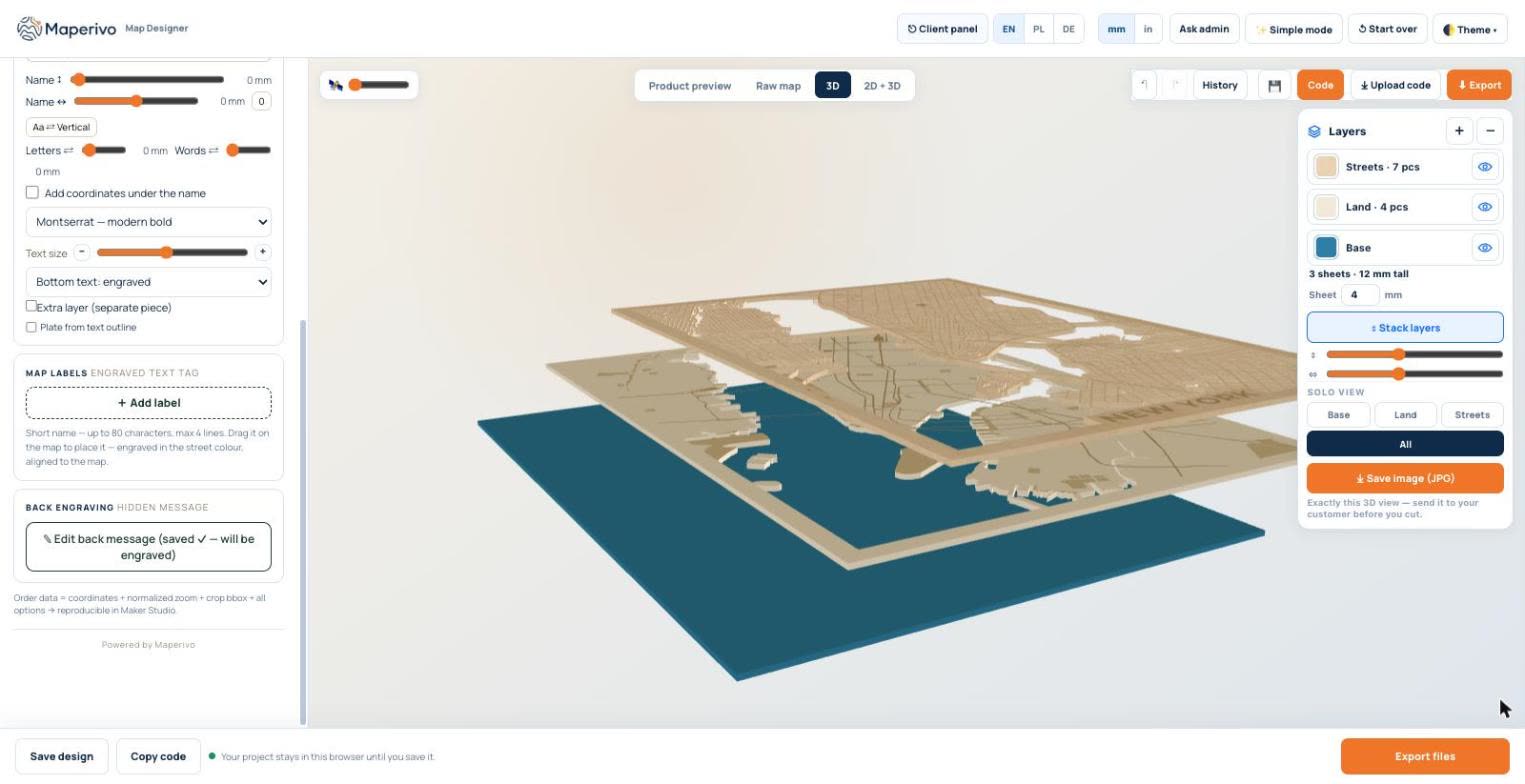
Maperivo builds the 3D view from the same geometry as the export. It lists the pieces per layer (here Streets 7 pcs, Land 4 pcs) and the total height from the sheet thickness (3 sheets × 4 mm = 12 mm). Solo view shows one layer at a time. See 3D previews for laser-cut designs.
9. Keep the design code
Customers come back for "the same map, but for my sister". Keep whatever lets you rebuild the exact files: in Maperivo that is the design code, which stores the place, zoom, size and every option, and re-exports the same SVGs later.
Want layered map files without building them by hand? The Laser Map Designer exports one millimetre SVG per sheet, with your laser palette, in about two minutes.
Sources
Checked 26 October 2026. Exporter options and colours as shown in the live Maperivo exporter on that date.
- LightBurn documentation (layers, colours, cut order)
- W3C — SVG 1.1, Coordinate Systems, Transformations and Units