Most failed laser jobs are not the laser's fault. The file arrives at the wrong size, the lines are thinner than the beam, the same edge is cut twice, or everything sits on one colour so the software cannot tell cutting from engraving. Here are the ten mistakes we see most often in SVG files, with a quick check and a fix for each one.
Quick answer
- Scale: save the SVG in millimetres (width="400mm" plus a matching viewBox), not in pixels. Pixel sizes depend on the program: 90 or 96 per inch.
- Line width: a line meant to be cut must be wider than the kerf; for engraving a thin line, use a single-stroke score line, not a hairline outline.
- Double outlines: a stroke converted to an outline is cut twice, side by side.
- Closed paths: fills and engraves need closed shapes; open ends engrave nothing or the wrong area.
- Colours = layers: give cut, engrave and score their own colours so LightBurn or xTool split them on import.
- Clean up: remove duplicate lines, tiny fragments, embedded bitmaps and live text.
The 10 mistakes, at a glance
| Mistake | What happens on the laser | Fix |
|---|---|---|
| 1. Size in pixels, not millimetres | The design imports 4–25 % too big or too small | Set the document in mm; width/height in mm with a viewBox in the same units |
| 2. Cut lines thinner than the kerf | Neighbouring cuts merge; thin parts burn away | Keep cut parts at 1 mm or more in wood; thinner lines become engrave or score |
| 3. Hairline outlines for thin details | Two cuts close together instead of one line | Use a single-stroke score line for anything under about 0.5 mm |
| 4. Stroke converted to outline | Every edge is cut twice, side by side | Keep one path per cut; convert strokes to fills only for engraving |
| 5. Open paths | Fill engrave fails or floods the wrong area | Close and join paths before export |
| 6. Duplicate and overlapping lines | The same line burns twice: dark edges, wasted time | Delete duplicates; LightBurn and Inkscape have tools for it |
| 7. Tiny fragments and islands | Pieces fall out, catch fire or get blown away | Merge or remove shapes smaller than a few millimetres |
| 8. Everything in one colour | The software cannot separate cut from engrave | One colour per operation: cut, engrave, score |
| 9. Live text and missing fonts | Text swaps to a default font or disappears | Convert text to paths before sending the file |
| 10. Embedded bitmaps | A photo inside the SVG engraves as a raster, or not at all | Trace to vectors or keep the image as a separate raster job |
Summary of the sections below. Exact behaviour depends on your laser software and settings.
1. The file is in pixels, not millimetres
An SVG without real units leaves the laser software to guess what one pixel means. The W3C SVG 1.1 specification gives an example where one inch equals 90 user units; current CSS defines one inch as 96 px, and some design programs work at 72 points per inch. The same file can therefore import at three different sizes. The fix is to write real units into the file header, for example width="400mm" height="600mm" viewBox="0 0 400 600", so one unit is one millimetre in every program. That is how Maperivo writes its exports.
2. Cut lines thinner than the beam
A laser removes a strip of material, the kerf, usually a few tenths of a millimetre wide in wood. A street drawn 0.4 mm wide and set to cut disappears completely; two cuts 0.3 mm apart leave nothing between them. In plywood, parts under about 1 mm wide are fragile and often burn through. Decide the width per feature in millimetres, not by eye on the screen.
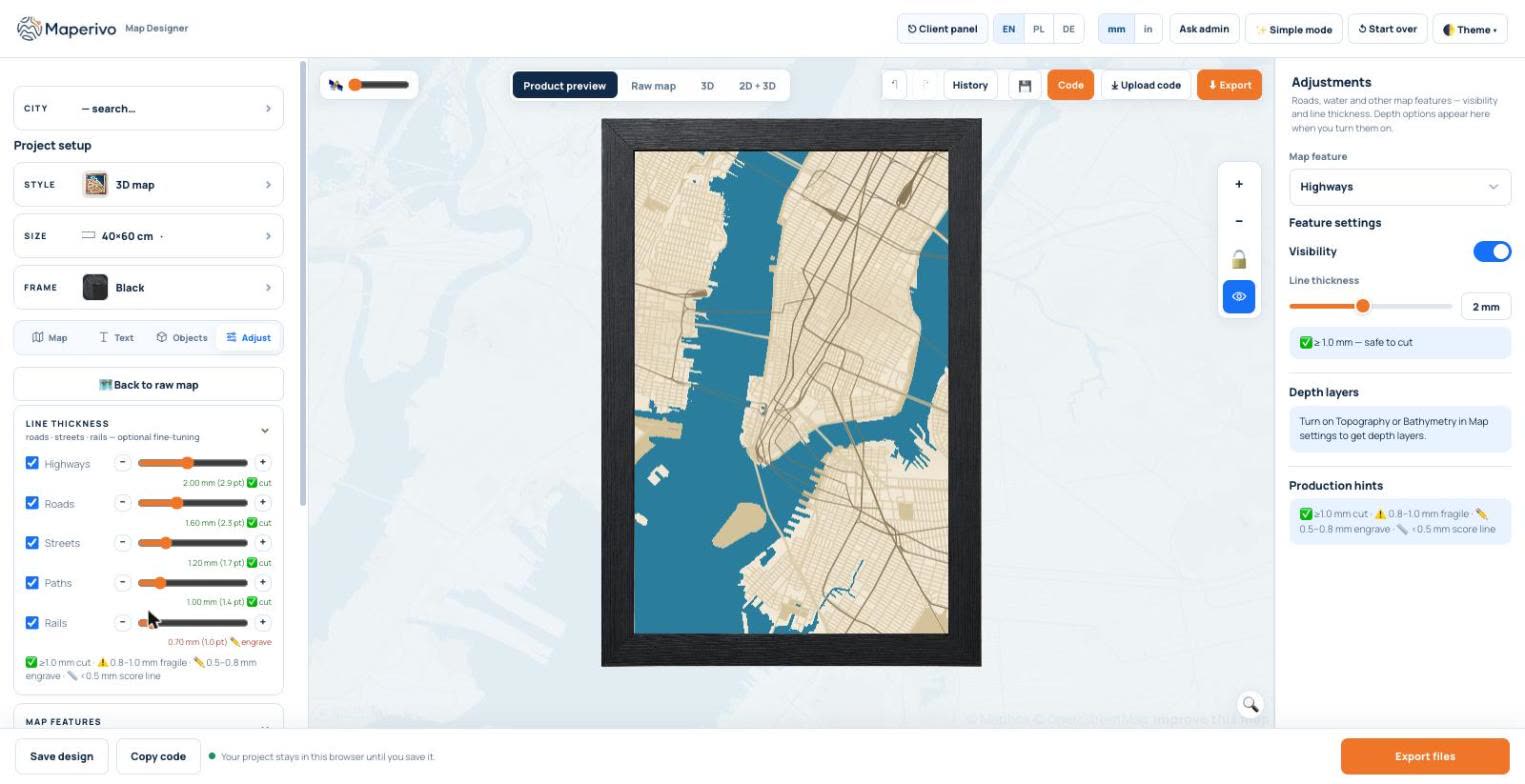
In the screenshot above each road type has its own width, and the designer says what that width becomes: 1 mm and more cuts safely, 0.8–1 mm is fragile, 0.5–0.8 mm is engraved as a filled line and anything thinner becomes a single score line. More on this in cut vs engrave layers explained.
3. Hairlines for thin details
A thin river or a footpath drawn as a closed shape 0.3 mm wide makes the laser trace both edges: two passes almost on top of each other, which chars the wood and doubles the time. For details under about half a millimetre, a single-stroke line on a score (or line engrave) layer looks cleaner and runs once.
4. Strokes converted to outlines
"Stroke to path" in a design program turns one line into the outline of that line, so a cut runs twice, once on each side. Keep cut geometry as single paths. Convert strokes to filled shapes only when you want them engraved as a filled band.
5. Open paths
Fill engraving needs a closed shape to know what is inside. A shape with a tiny gap engraves nothing, or the software closes it with a straight line across your design. Join and close paths before exporting, and check the node count at corners where lines meet.
6. Duplicate and overlapping lines
Maps traced from several sources, or copied layers, often contain the same edge twice. The laser burns it twice: darker edges, more smoke, longer jobs. Remove duplicates before cutting; both LightBurn and Inkscape have tools for overlapping lines.
7. Tiny fragments and islands
Dense drawings, city maps above all, are full of small closed shapes between streets. Below a few millimetres these pieces fall through the honeycomb, catch fire or get blown away by air assist. Merge them into the surrounding area or delete them. A layered 3D preview is the quickest way to spot them: see 3D previews for laser-cut designs.
8. One colour for everything
LightBurn and xTool Creative Space assign operations by colour (or by layer). If cutting, engraving and scoring all share one colour, you have to separate them by hand after import. Use one colour per operation and keep the same palette across jobs, so your saved speeds and powers apply automatically.
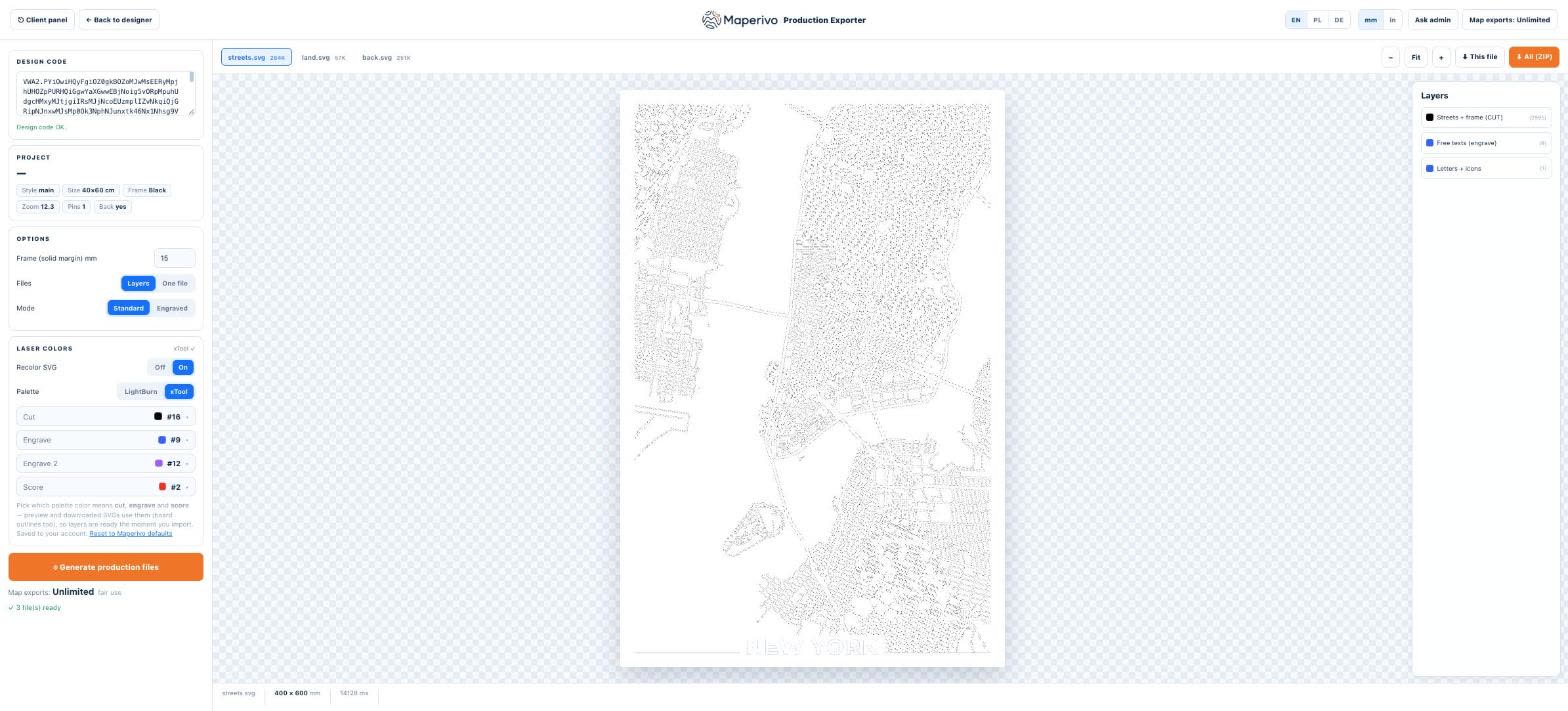
The Maperivo exporter lets you choose the palette for LightBurn or xTool and which colour means cut, engrave, engrave 2 and score; the downloaded SVGs use exactly those colours. For the full layer setup see best practices for layered SVG files.
9. Live text and missing fonts
Text that is still editable in the SVG depends on the font being installed on the laser computer. If it is not, the software swaps in a default font or drops the text. Convert text to paths before you send the file, and keep an editable copy for yourself.
10. Bitmaps hidden inside the SVG
An SVG can carry an embedded photo. The laser software treats it as an image: it engraves as a raster or not at all, and it never cuts. If a logo or drawing must be cut, trace it to vectors first; if it is a photo, run it as a separate image engrave job.
A five-point check before every job
- Import the SVG and measure one known dimension: does 400 mm read 400 mm?
- Zoom to the thinnest part: is it at least 1 mm where it must be cut?
- Look at the layer list: one colour per operation, nothing left on a stray colour?
- Use the software preview to check the job order: engrave first, cut last.
- Cut a small test square from the same sheet before the full piece.
For map files you can skip most of this: the Maperivo Laser Map Designer writes millimetre SVGs with widths checked per road type, single score lines for thin details and layers coloured for your laser software. For format questions see SVG vs DXF for laser cutting.
Sources
Checked 26 October 2026. Every page below was opened and read.
- W3C — SVG 1.1, Coordinate Systems, Transformations and Units (example: 1in = 90px = 90 user units)
- W3C — CSS Values and Units Level 3 (1in = 2.54cm = 96px; 1pt = 1/72 in)
- LightBurn documentation (layers, import, cut settings)