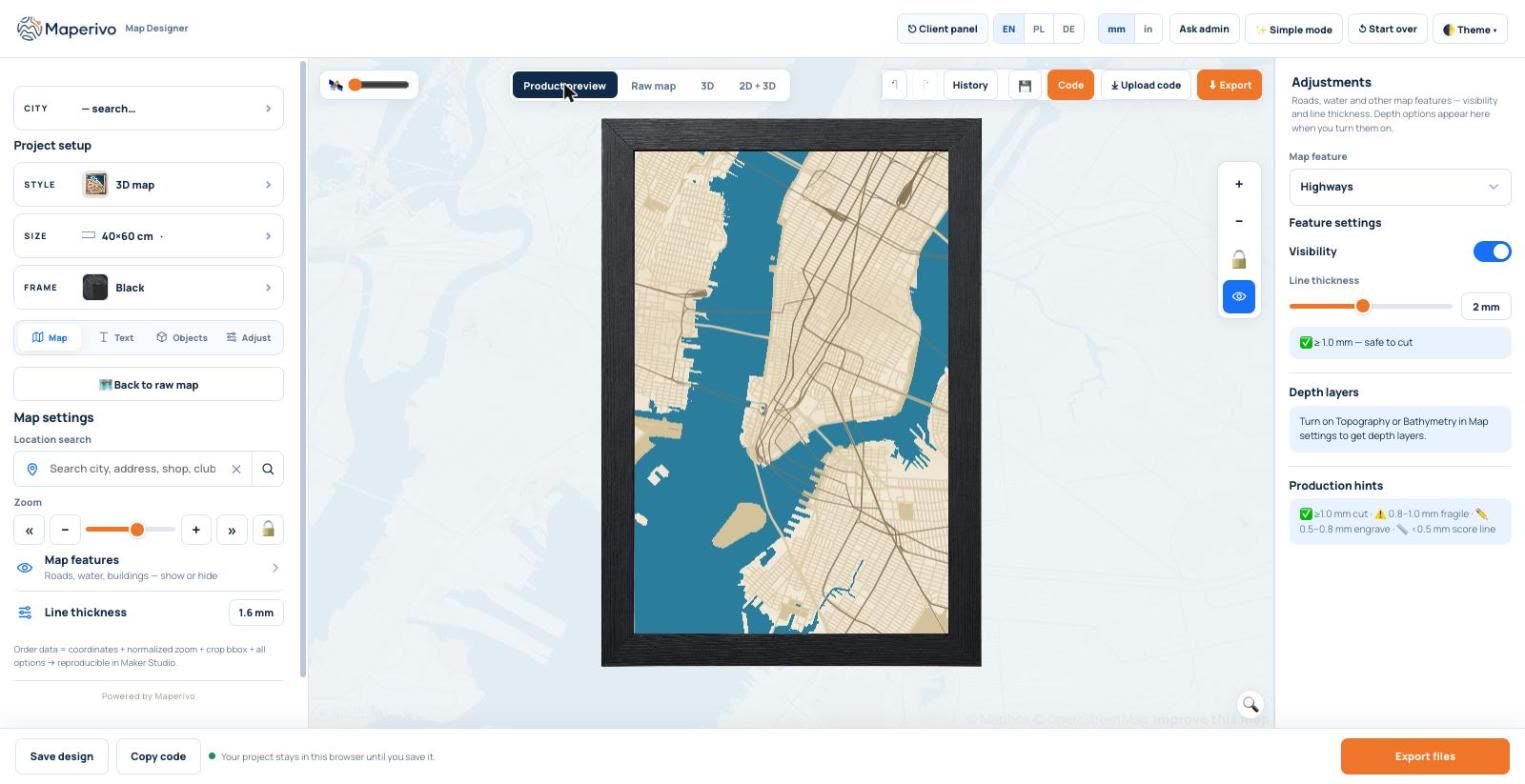
A map of the place where two people met, got engaged or bought their first home is one of the most personal gifts a laser can make. This guide walks through the whole job in the browser, with real screenshots from our designer: from choosing the product to a file you can open in LightBurn or xTool.
Quick answer
- Pick the product first: layered 3D map, cut-out, love story with several hearts, memory poster or key holder.
- Find the place and frame the area with the zoom.
- Add a name plate at the bottom (city, names, a date).
- Drop pins on the places that matter: a heart, a home, a star.
- Write a hidden message for the back of the base.
- Check it in 3D and send the customer a JPG to approve.
- Export layered SVG in millimetres and cut.
1. Choose the product before the place
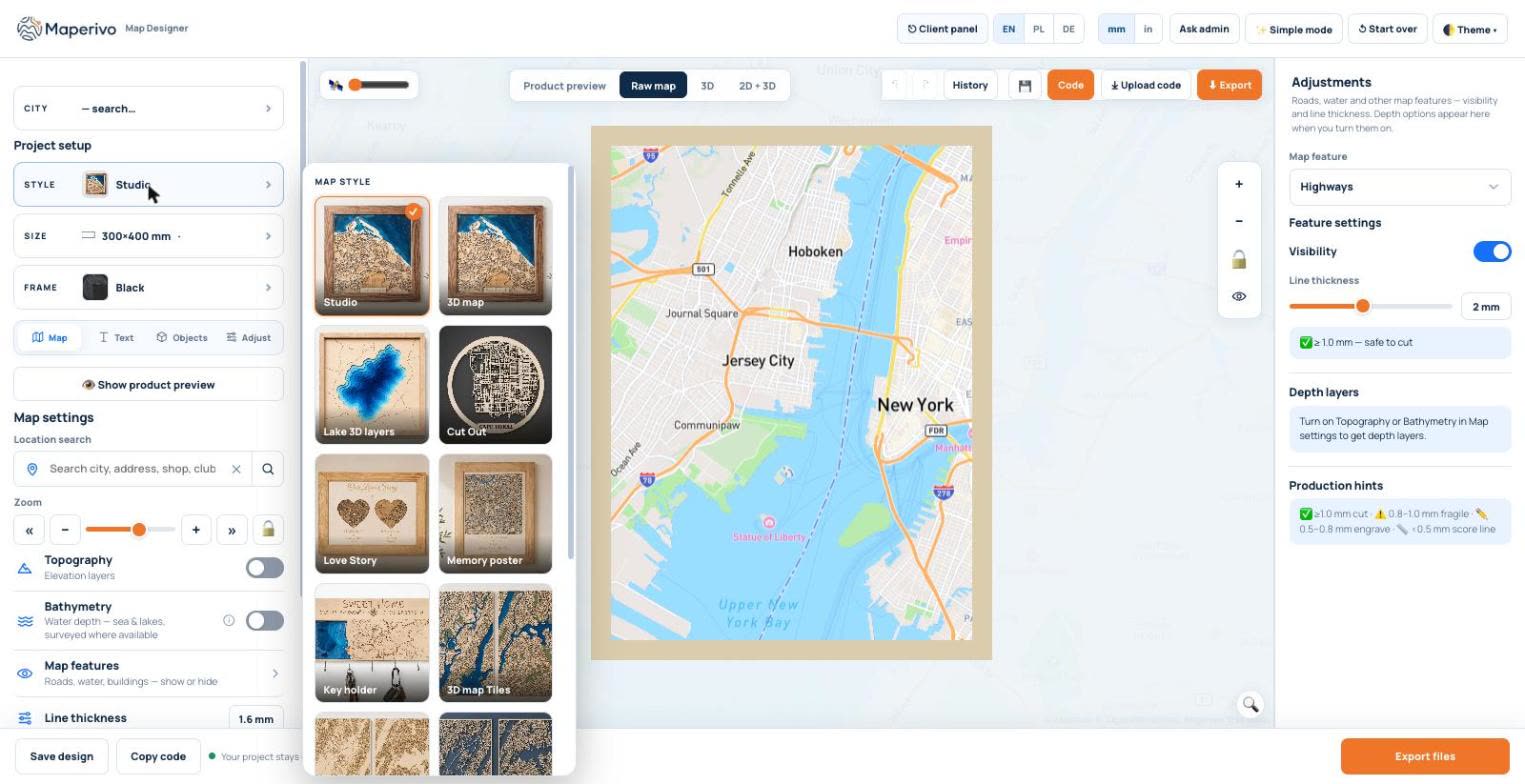
The style decides how many sheets you cut and what the gift looks like on the wall, so it comes first. A 3D map is a stack: a base, a land layer with the water cut out and a street layer on top. A cut-out is one board where the streets are the material. Love Story puts two to four small maps in heart (or other) windows on one board, which suits "where we met / where we married / our home". Memory poster and key holder add a panel for text or hooks.
| Gift | Good style | Why |
|---|---|---|
| Wedding or anniversary | Love Story or 3D map | Several places on one board, or one place with real depth |
| New home | Key holder or 3D map | Useful every day; street of the new address in the middle |
| Hometown or a trip | 3D map or cut-out | The whole city at a glance |
| Lake house, fishing, sailing | Lake 3D layers | Real depth contours of the lake, layer by layer |
Our suggestions; any style works for any occasion.
2. Find the place and set the area
Search for a city, an address or a venue, then frame it with the zoom. While you zoom, the designer shows the real width of the area next to the board size: the Manhattan map in these screenshots covers about 4.7 miles (7.5 km) at 40 × 60 cm. A single neighbourhood with the couple's street reads better at 1–2 km. Product preview shows the board exactly as it will hang, frame included.
3. Add the name plate at the bottom
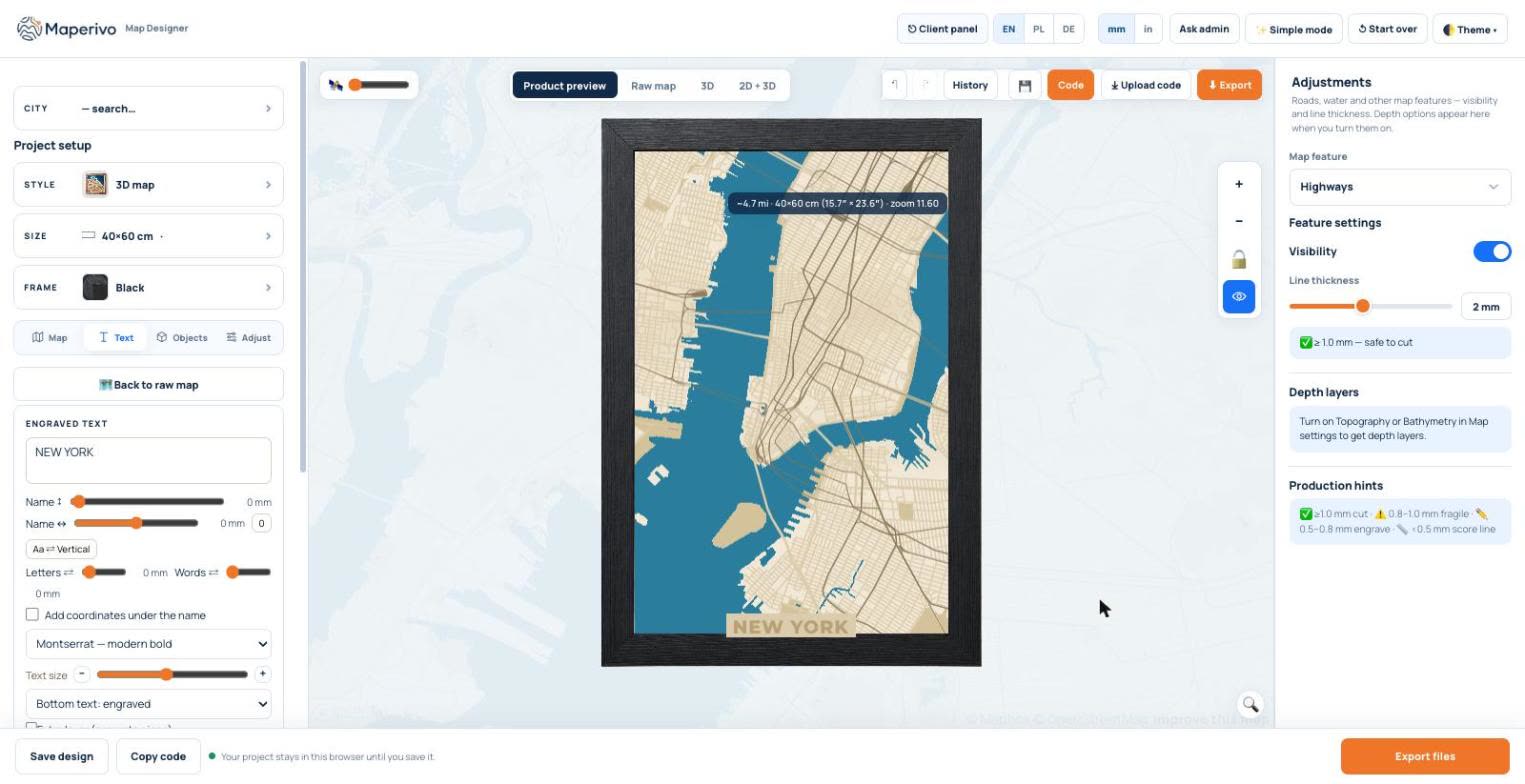
Open the Text tab and type the city or the names. The text sits at the bottom of the map: engraved, cut as an extra layer (a separate piece), or as a plate cut from the text outline. Tick Add coordinates under the name for the latitude and longitude. Short texts read best: a city name, two first names and a year. For small labels on the map itself (a church, a café) use Map labels: up to 80 characters, engraved in the street colour.
4. Mark the places that matter with pins
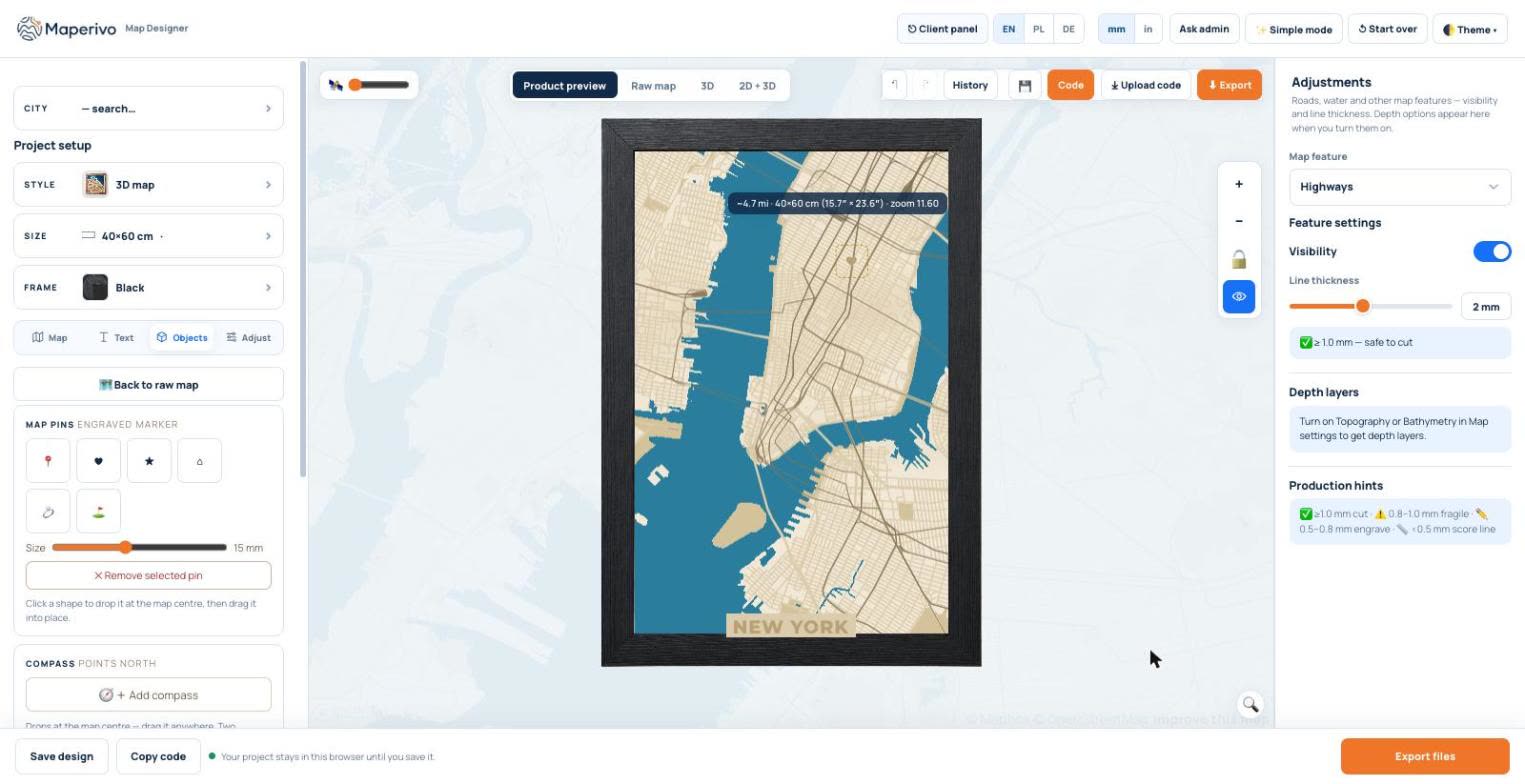
In Objects, click a pin shape (classic pin, heart, star, home and a few more): it drops in the map centre and you drag it into place. Pins are engraved markers; the default 15 mm stays readable on a 40 × 60 cm board without hiding the streets. The same tab adds a compass that points north.
5. Hide a message on the back
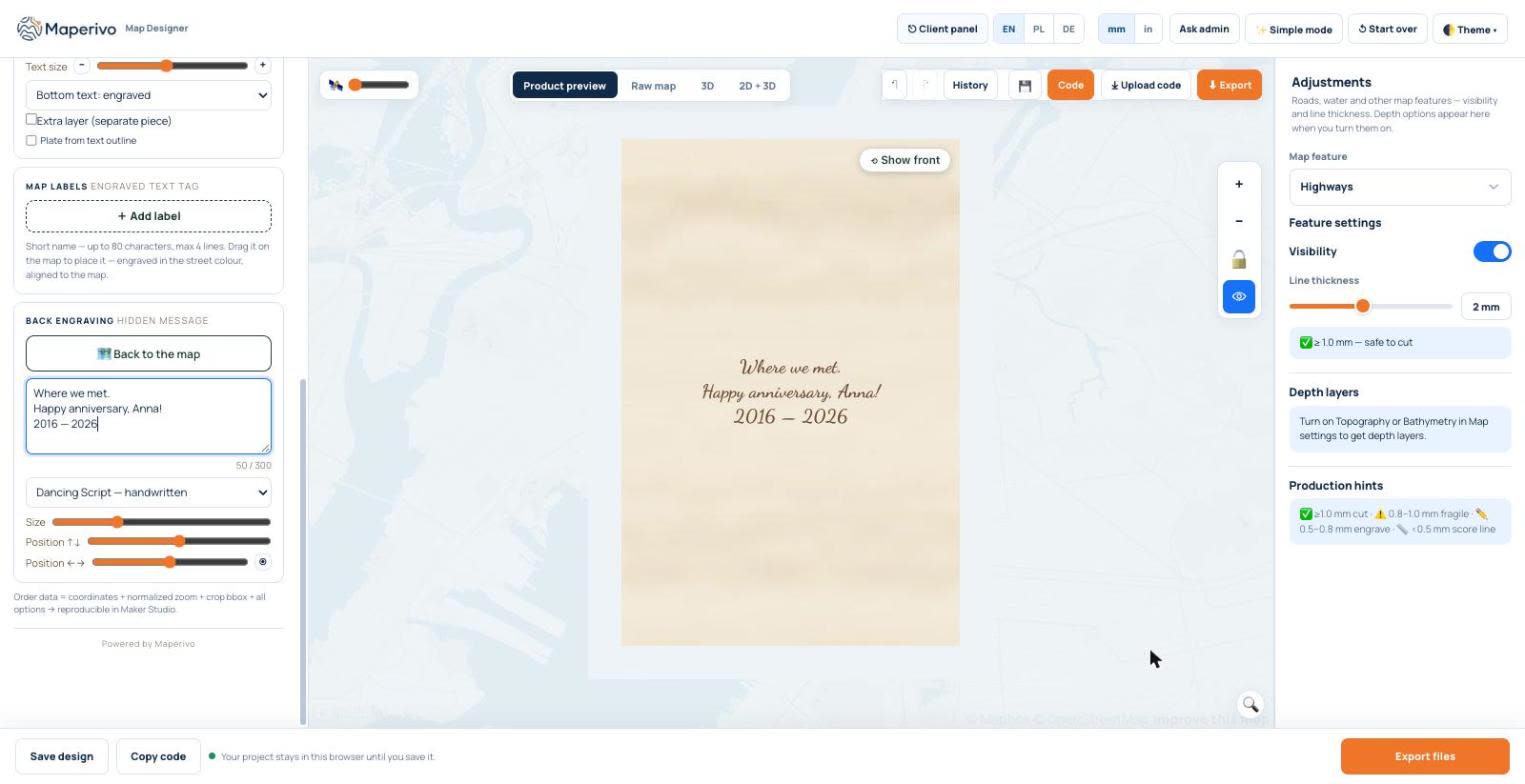
The back of the base is the most personal part of the gift and costs nothing extra in material. In the Text tab, under Back engraving, write up to 300 characters, choose a handwritten or classic font, then set its size and position. The preview flips to the back; Show front returns to the map. The message is exported as its own file (back.svg) for the underside of the base.
6. Check every layer in 3D and get approval
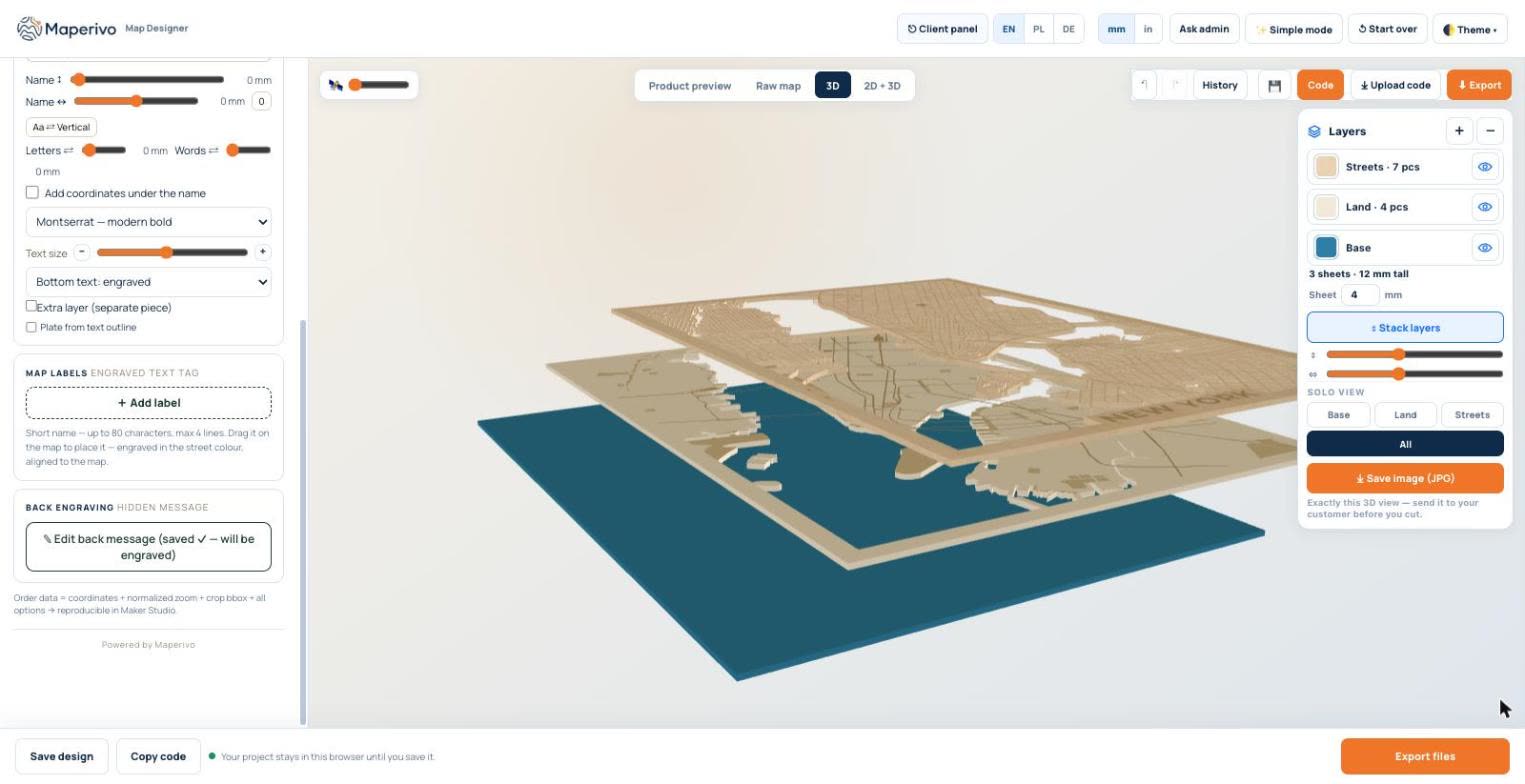
The 3D view builds the real layers from the same geometry as the cut files: base, land and streets, with the number of pieces per layer and the total height (for example "3 sheets · 12 mm tall" with 4 mm plywood). Pull the layers apart to spot tiny islands, then press Save image (JPG) and send exactly that view to the customer. One approved picture saves most of the "can you move the heart a bit" messages.
7. Export layered SVG and cut
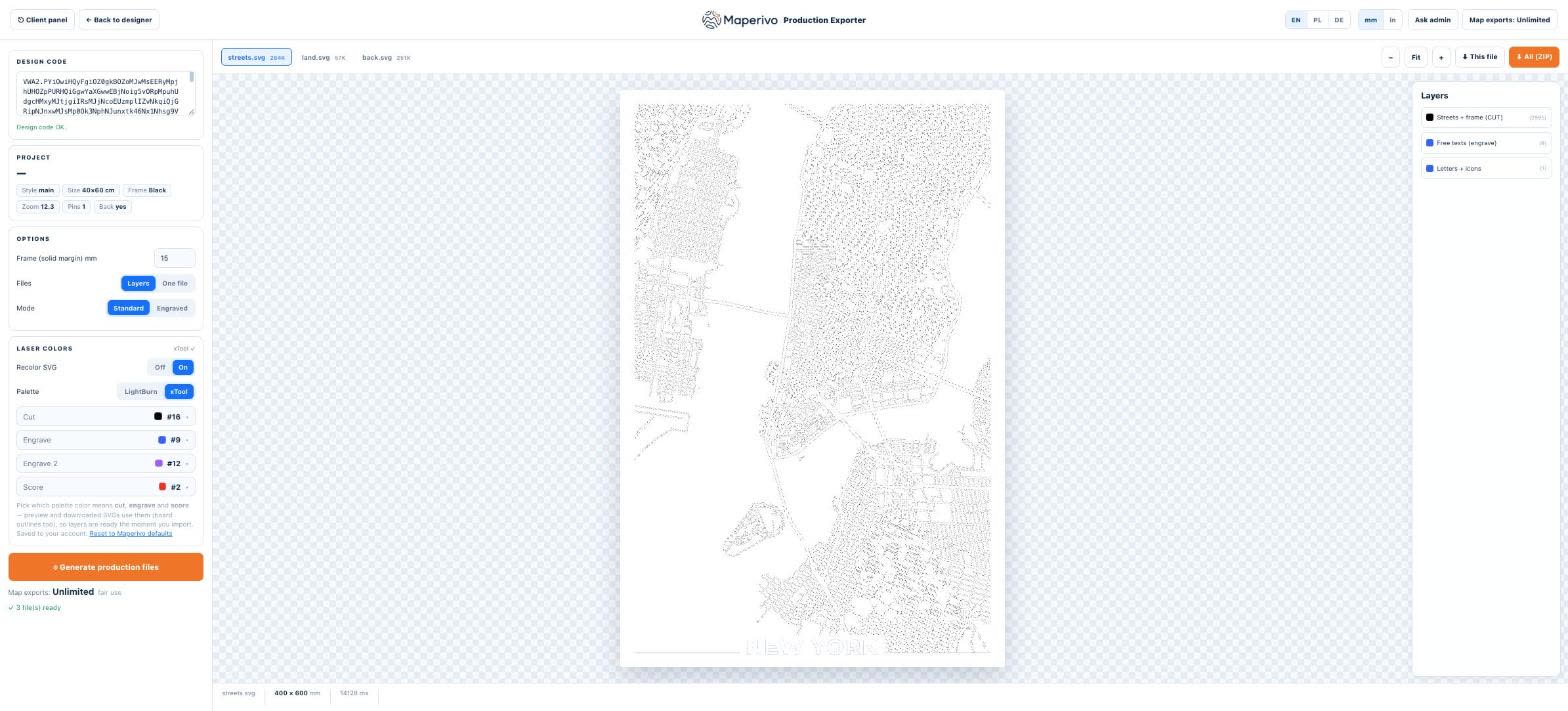
The export is a set of SVG files in real millimetres: one per layer (streets, land, back), already coloured for LightBurn or xTool so the layers map to cut, engrave and score without cleanup. Street widths are set in millimetres too, and the designer tells you what each width becomes: 1 mm and more cuts safely, 0.8–1 mm is fragile, 0.5–0.8 mm becomes an engrave and anything thinner a single score line.
| Layer (40 × 60 cm, 4 mm plywood) | Typical operation | Tip |
|---|---|---|
| Base | Cut outline; engrave the back message | Engrave the back first, then flip |
| Land | Cut outline and water | Pour resin or leave the blue base visible |
| Streets | Cut | Hold the sheet flat; tiny blocks need air assist |
| Name plate, pins | Engrave or cut | Engrave after cutting so the sheet does not move |
Layer names as in the Maperivo export; your order of operations may differ by machine.
Material, time and price
Designing takes a few minutes once you know the place and the text. A three-layer map needs three sheets plus a frame; the cutting time depends mostly on your machine and the street density, so run a small test square first. For pricing your gift maps, see how to price custom map products, for assembly glue, alignment and kerf for layered maps, and for more ideas custom map gift ideas and how to make an anniversary map.
Selling gift maps to other people? Your customers can design their own map from a link you send them, and the finished design lands in your orders: see how to manage custom map orders without endless messages. You can try every style free for 14 days in the Laser Map Designer.